A PHOTO YOU WANT TO CARRY
Your Coastal Photo on a Phone Case: Keep the View or Fill the Case?
Photo DIY · $35 per case
Create your photo case →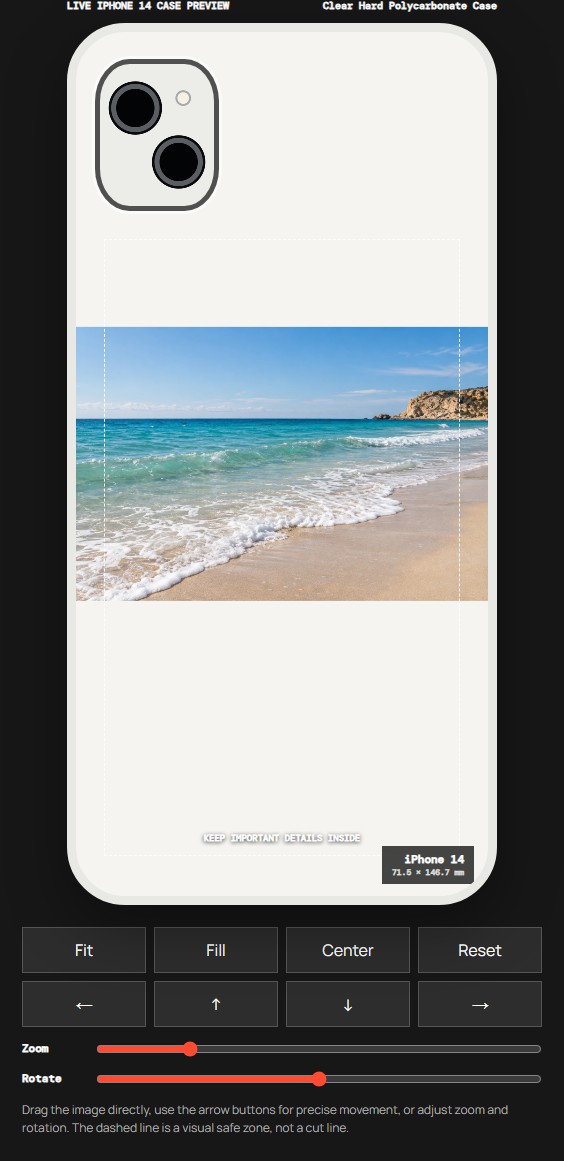
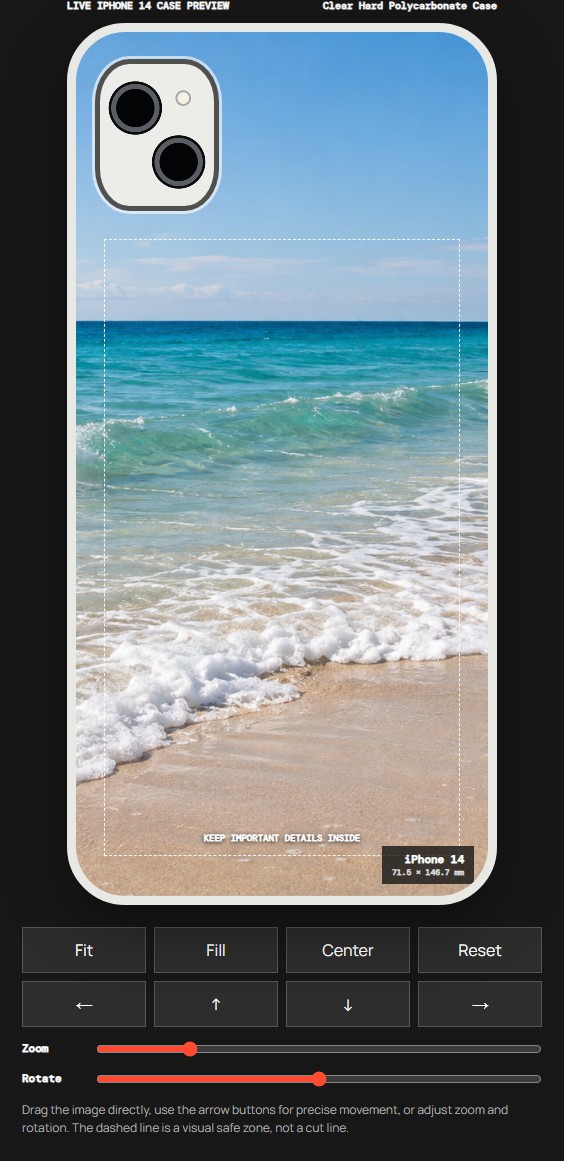
A wide beach photo can become a very different picture on a tall phone case. Keep the whole scene with Fit, or choose Fill for a closer view that covers more of the case. The right choice depends on which part of your photo brings the place back to you. VIBE IN CASE photo cases currently cost $35 each.
See the difference before you start
The two editor previews above use exactly the same image, material and iPhone 14 model. Only Fit versus Fill changes. In the Fit version, the rocky headland remains visible at the right and the picture occupies a horizontal strip. In the Fill version, the waves become the main subject and the headland disappears beyond the crop.
These are actual screenshots from the VIBE IN CASE editor. The coastal source image was created with AI for this demonstration, not photographed on a customer's holiday. The screenshots are placement previews, not photographs of printed cases or promises of an exact screen-to-print color match.
Decide what makes this your beach photo
A favorite coastal image is often about one small thing: the curve of a wave, a distant headland or the way evening light touches the sand. Name that detail before changing the crop. Otherwise it is easy to keep enlarging the picture until the part that made you choose it has vanished.
If the whole location matters, begin with Fit. The smaller picture can be the right decision when the headland and shoreline need to stay together. If the water and color are what you love, Fill may give them more presence. There is no requirement to fill every edge with image detail. A quieter composition can still be a personal case.
Start from the original photo
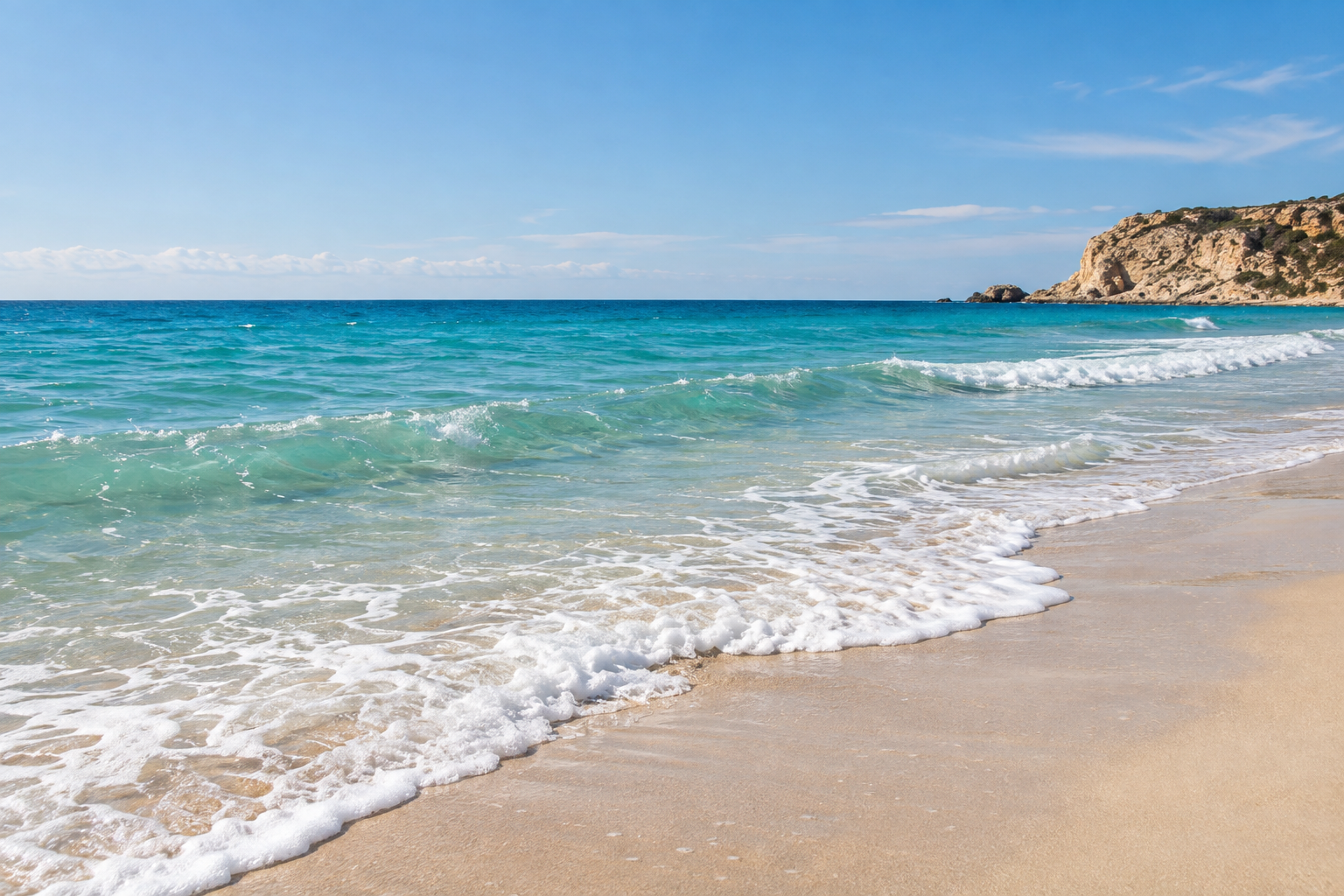
The uncropped demonstration image. Use your own original photo or a file you have permission to print.
Find the original download on your phone or camera rather than saving a screenshot of a social post. A screenshot can include compression, interface details or a crop you cannot undo. If you only have an edited square version, look for the wider original before deciding that the scene cannot fit.
The current upload accepts one PNG, JPG or WebP file up to 12 MB. Keep a separate copy if you make changes to your source. Enlarging a small image does not recreate missing detail, and a preview cannot turn a blurred wave into a sharp photograph. Choose a source that still looks clear when you inspect the part you intend to enlarge.
Choose the phone first, then the framing
Select your material and exact phone model before spending time on the composition. Our comparison uses Clear Hard Polycarbonate Case for iPhone 14. Clear Flexible TPU Case is another option currently listed in the studio. The available models depend on the selected material; a material name is not proof that it fits every phone.
The camera opening removes part of the available picture area. A mostly open sky can give that opening some breathing room, but check your own image rather than relying on our example. Keep a face, a boat or another essential detail away from the opening and the outer edges. The dashed guide is a visual aid, not a precise factory cutting line.
Try two versions without losing the original
Upload the source and select Manual Adjust. Tap Fit first and look at what remains visible. Then tap Fill and check which edges disappear. You can go back to Fit if the closer version loses too much. The original file stays on your device; choosing a different preview layout is not the same as overwriting that file.
For the demonstration, Fit keeps the complete wide scene. Fill uses a narrower central part of it. On your own photo, you can drag the picture to favor the detail you want and adjust zoom when needed. Keep an eye on the horizon while moving it. Enlarging the sea can be attractive, but a strongly tilted horizon may change the calm feeling you wanted.
Look again at normal viewing size rather than judging only while zoomed in. If you need the whole bay, do not discard that meaning simply to make the image larger. If you mainly want the wave pattern, you can let the distant scenery go. This choice is about the picture you want to carry, not about which button sounds more professional.
Ask for a specific adjustment when you need help
Studio Arrange is available if you would like help with placement. A note such as “keep the headland on the right” or “make the nearest wave the main subject” gives the team something clear to work with. Describe the part that matters instead of asking for an unspecified improvement.
For a different material or a model question, use the WhatsApp contact shown in the studio before ordering. You do not need to post your personal photo publicly to discuss a case. Open the conversation, write your question and tap Send to reach the team.
Save your design and review one clear order
When the placement feels right, use Save design & add to bag. Check the model, material, preview and quantity in the bag before proceeding to payment. The current phone-case price is $35, with standard shipping to eligible U.S. addresses and applicable sales tax included. Read the live order summary and VIBE IN CASE shipping and returns for the conditions that apply.
The VIBE IN CASE studio opens at moodincase.com/vibe-custom as part of the shared ordering service. Look for the VIBE IN CASE name at the top; the destination is intentional. You are starting a VIBE custom design, not choosing an unrelated ready-made case.
Create a case from your own photo →
A few quick answers
Will Fill keep the entire landscape? Usually not when a wide image is placed on a tall case. It covers the preview area by cropping part of the picture. Check the result before saving.
Do I need to make my photo vertical first? No. You can compare Fit and Fill with the original wide file in Manual Adjust. An edited copy is optional if you want to prepare a particular crop beforehand.
Is the blank area around Fit guaranteed to print white? No. The preview shows placement; the appearance of unprinted areas depends on the material and production treatment. Ask the studio if that detail is important to your design.
Is the example a finished customer order? No. It uses an AI-created scene and actual editor screenshots to explain the controls. Your design starts with the image you choose.
Before you start
Will Fill keep the entire landscape?
Usually not when a wide image is placed on a tall case. It covers the preview area by cropping part of the picture. Check the result before saving.
Do I need to make my photo vertical first?
No. You can compare Fit and Fill with the original wide file in Manual Adjust. An edited copy is optional if you want to prepare a particular crop beforehand.
Is the blank area around Fit guaranteed to print white?
No. The preview shows placement; the appearance of unprinted areas depends on the material and production treatment. Ask the studio if that detail is important to your design.
Is the example a finished customer order?
No. It uses an AI-created scene and actual editor screenshots to explain the controls. Your design starts with the image you choose.