A TICKET MEMORY, PREPARED SAFELY
A Concert Ticket Photo Case Without Sharing the Barcode
Photo DIY · $35 per case
Create your ticket photo case →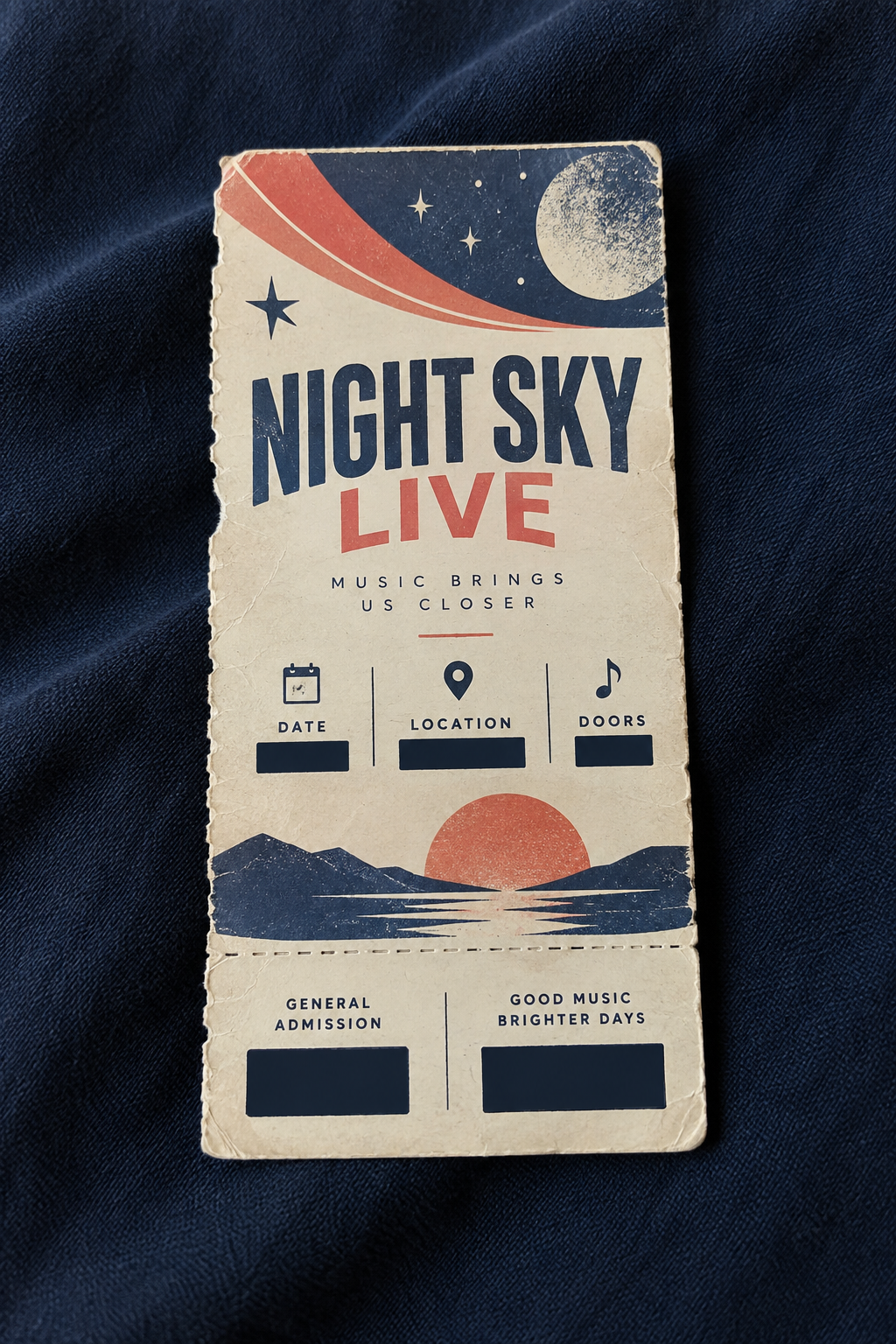
Yes, you can turn a concert ticket photo into a personal phone case without uploading a usable barcode. Make a separate copy first, cover every barcode, QR code, order number and personal detail with an opaque block, save that safe copy, and upload only the copy to the VIBE IN CASE editor. Do not depend on the phone-case crop to hide sensitive information. VIBE IN CASE photo phone cases currently cost $35 each.
See the safe source before the instructions
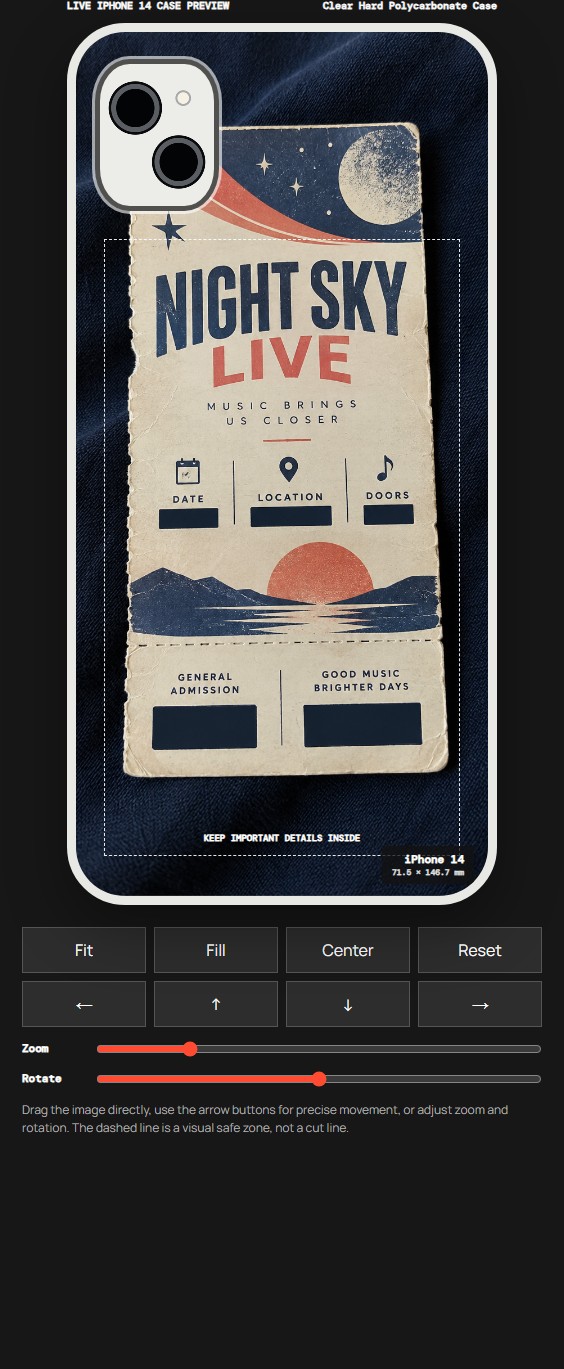
The first image above is an AI-created fictional ticket, not a real admission credential. Its date, location, admission and code areas were designed as solid navy blocks, so the file contains no working ticket data. The second image is an actual screenshot from the VIBE IN CASE editor using that same safe file on an iPhone 14 preview.
This guide does not use a customer's ticket, booking confirmation or order. The editor screenshot is a placement preview, not a photograph of a printed case, a production sample or a promise of exact screen-to-print color. It demonstrates one important sequence: remove private information from a copy first, then judge the composition.
Decide what you want the case to remember
A ticket can hold several kinds of memory: the event name, the colors, a worn paper edge, a date, a venue or the feeling of keeping the stub after the show. Decide which of those details matters before editing. You may not need every line of the ticket to make the memory recognizable.
That decision also helps with privacy. A person's name, booking reference, account email, seat number or entrance code is not the part that gives the design its meaning. Keep only the visual details you want to carry. If a location or date feels personal, cover it too. The goal is not to reproduce a credential; it is to make a decorative image from a memory you have the right to use.
Make a separate privacy-safe copy
Keep the original ticket image somewhere private. Duplicate it in your phone's photo editor or another tool you trust, and work only on the duplicate. Cover each sensitive area with a fully opaque shape. A blur, translucent brush or decorative sticker may leave characters partly readable, especially after enlargement, so inspect the saved copy at full size.
Look beyond the obvious QR code. Check both ends of a paper ticket, the edge of a mobile-wallet screenshot and any small print near the bottom. Booking references, customer names, email addresses, account numbers, seat details and secondary barcodes can appear away from the main code. If you are unsure whether a mark can be scanned or used to identify a booking, cover it.
After saving the safe copy, close the editor and open the new file again. Zoom in and confirm that the blocks are part of the image rather than temporary editing handles. This extra check matters because a visual overlay that was not saved may disappear when the file is reopened.
Do not rely on the case crop for privacy
It can be tempting to place the barcode just outside the visible phone-case area. That is not the same as removing it from the uploaded file. If you later switch from Fit to Fill, drag the image, change models or ask for a different arrangement, the hidden edge may move back into view.
Start with a file that is safe wherever it appears. Then cropping becomes a design choice instead of a privacy control. In our fictional example, the navy blocks remain visible in both the source and the editor preview. They are intentionally part of the artwork and do not depend on a particular phone outline.
Choose the phone before refining the layout
Select the material and exact phone model before spending time on placement. The demonstration uses Clear Hard Polycarbonate Case and iPhone 14. Clear Flexible TPU Case is another material currently listed in the VIBE IN CASE studio. A material name does not prove that every phone model is available, so use the options shown after your selection.
The camera opening and the tall case shape change how a rectangular ticket fits. Keep the event heading and the paper edge away from the camera area if those details matter. The on-screen guide helps you review placement, but it is not a precise factory cutting line. Check the whole preview at normal size instead of judging only while zoomed in.
Use the ticket's design, not its credentials
Once the privacy-safe copy is loaded, compare the strongest decorative elements. A bold event heading can sit near the center, while a moon, color stripe or worn edge can give the case a more personal rhythm. You can enlarge the image if small type makes the design feel busy, but enlarging cannot create missing detail in a low-resolution screenshot.
If the source is a mobile ticket, consider removing the surrounding app interface before upload. Status icons, navigation buttons and wallet controls are not part of the keepsake. Work from a duplicate, preserve the original privately and inspect the new file again after every crop or cover operation.
Ask for help without sending the original credential
Studio Arrange is available if you want help with placement. Use the already-redacted copy when asking for assistance. A note such as “keep the event heading centered” or “leave the worn lower edge visible” is more useful than sending the unedited ticket and asking for a general improvement.
For a model or material question, use the contact option shown in the studio before ordering. Do not post a real ticket code publicly or send an active credential merely to explain the layout you want. A privacy-safe copy is enough for a visual placement question.
Save one design and review the order
When the layout looks right, use Save design & add to bag. Review the VIBE IN CASE name, material, exact phone model, preview and quantity before proceeding. The current phone-case price is $35. Read the live order summary and VIBE IN CASE shipping and returns for the conditions that apply to the order.
The VIBE IN CASE studio opens at moodincase.com/vibe-custom because the brand uses a shared ordering service. Check the VIBE IN CASE label at the top so you know you are working in the correct studio. The process should begin with the safe copy and end with a final preview check; it should never require publishing the original ticket.
Create your ticket photo case →
A few quick answers
Is cropping the barcode out in the case preview enough? No. Make a separate copy and cover the code before uploading. Repositioning or changing the crop can reveal an area that only looked hidden in one preview.
Should I use my ticketing-app screenshot? Use it only after making a privacy-safe copy that removes names, order numbers, seat details when sensitive, and every usable barcode or QR code. Keep the original private.
Is the ticket in this guide a real admission ticket? No. It is an AI-created fictional example. The editor image is a real VIBE IN CASE placement preview, not a customer order or printed-case photograph.
Does the preview guarantee the final crop or printed color? No. Use it to review placement, model and visible details before saving. It is not a production sample or a promise of exact screen-to-print color.
Before you start
Is cropping the barcode out in the case preview enough?
No. Make a separate copy and cover the code before uploading. Repositioning or changing the crop can reveal an area that only looked hidden in one preview.
Should I use my ticketing-app screenshot?
Use it only after making a privacy-safe copy that removes names, order numbers, seat details when sensitive, and every usable barcode or QR code. Keep the original private.
Is the ticket in this guide a real admission ticket?
No. It is an AI-created fictional example. The editor image is a real VIBE IN CASE placement preview, not a customer order or printed-case photograph.
Does the preview guarantee the final crop or printed color?
No. Use it to review placement, model and visible details before saving. It is not a production sample or a promise of exact screen-to-print color.