PRESSED FLOWERS, PHOTOGRAPHED BEFORE ORDERING
Should You Photograph Pressed Flowers on a Clean Background for a Phone Case?
Photo DIY · $35 per case
Create your pressed-flower photo case →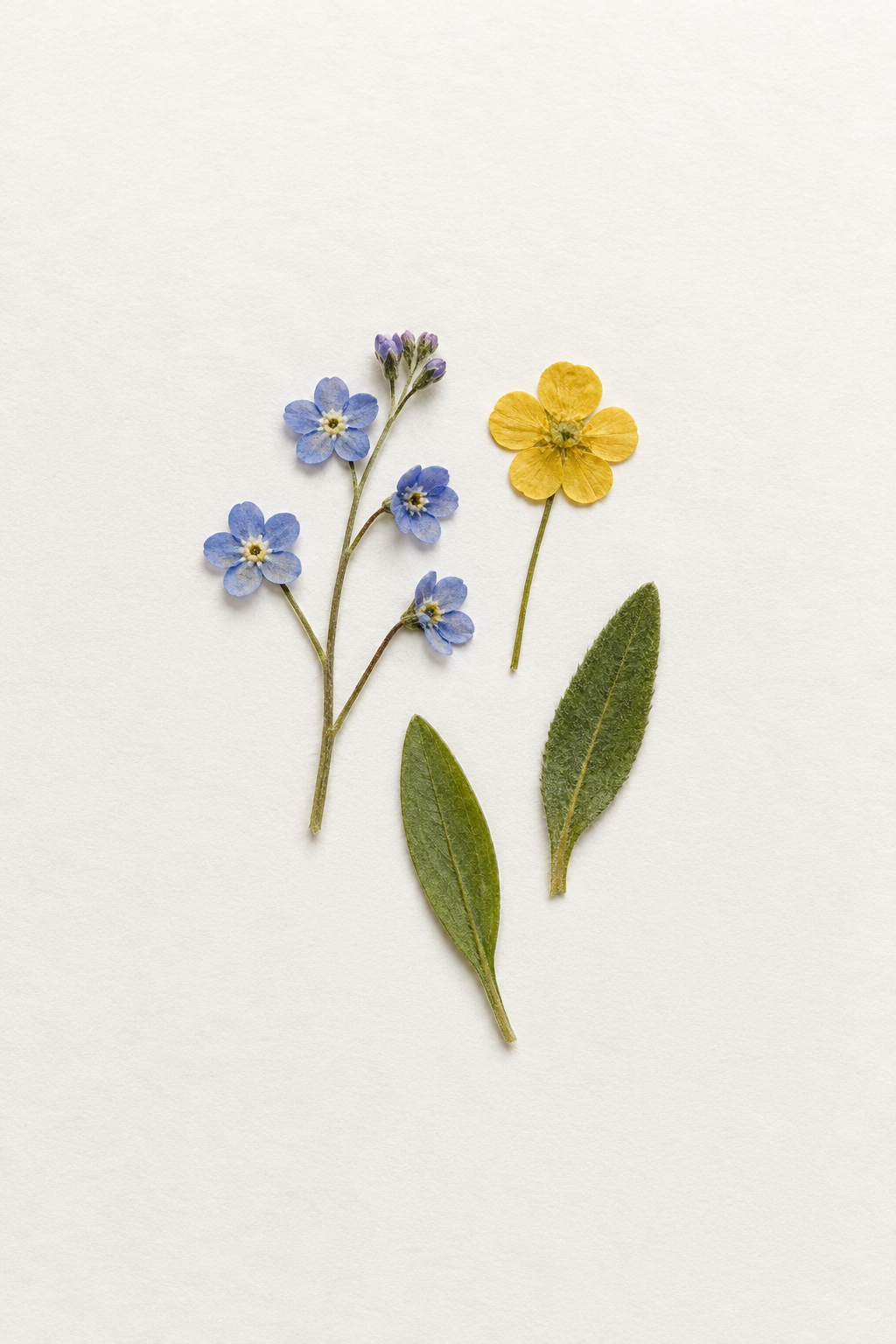
Yes—start by photographing pressed flowers on a clean, quiet background. The background does not have to be pure white, but it should make the petal and leaf edges easy to see and leave enough open space for a phone-case crop. Photograph the whole arrangement before uploading, then check the actual model and camera area in the VIBE IN CASE editor. The current phone-case price shown in the studio is $35.
See the source beside the real editor preview
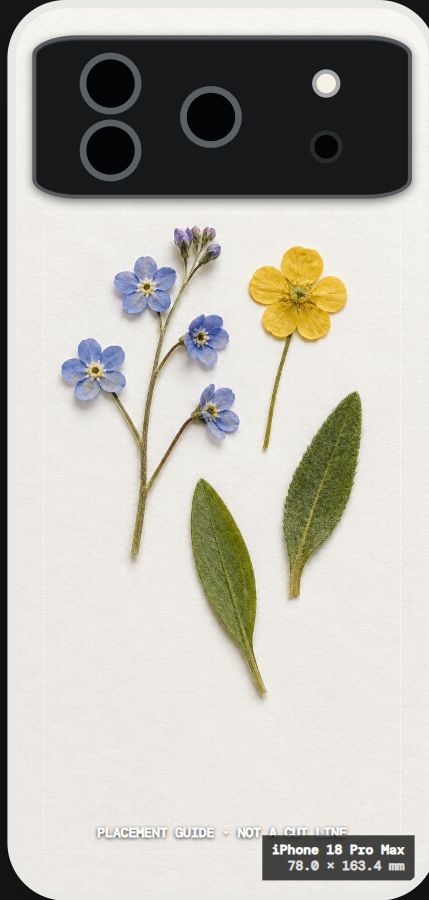
The first image above is an entirely fictional AI-created arrangement of pressed blue and yellow flowers on warm-white paper. It is not a customer image, a botanical specimen offered for sale or a production photograph. The second image is a real screenshot from the VIBE IN CASE shared editor using that exact file, with Clear Hard Polycarbonate Case and iPhone 18 Pro Max selected.
The screenshot proves the composition workflow only. The source is 1024 by 1536 pixels, so its shorter side is below the editor's current recommendation of at least 1500 pixels for best results. It can show where the stems, petals, camera opening and placement guide meet, but it cannot prove print sharpness or exact color. Use a larger original photograph when you have one.
Choose a background that separates the edges
A plain background helps you answer a practical question before upload: where does each flower end? Pale petals can disappear against bright paper, while dark leaves can merge into a busy wood grain, patterned cloth or shadow. Pick a matte surface with enough contrast for the thinnest stem and lightest petal. Warm white, pale gray or a muted color can all work when the subject remains distinct.
Avoid photographing through glass if it introduces glare across the petals. Check for hard shadows, tape, dust and wrinkles that you do not want in the final composition. The editor receives the picture you upload; it cannot know which marks are intentional. Clean the arrangement and the background before taking the photo rather than expecting a phone-case preview to repair every distraction.
Leave room around the arrangement
Do not build the flowers directly against the edge of the camera frame. A phone case is tall and narrow, and the selected model needs space for its camera opening. Leave margin around the top, sides and lowest stem so you can move or scale the image without immediately cutting into the subject.
In the demonstration, the flowers sit in a compact group with open paper above and below. The camera area covers part of that open paper instead of a flower head. The leaves remain inside the visible case area, and the longest stem does not depend on a corner to be recognizable. Your arrangement can be fuller, but it should still have one or two safe crop options.
Photograph the arrangement squarely
Place the paper flat and hold the camera parallel to it. A steep angle changes the apparent size of the flowers from top to bottom and can make a straight composition harder to align. Use diffuse light so the paper remains visible without a bright hotspot. Take more than one frame, then choose the version with clear edges and the least unwanted shadow.
Save the original camera file. Screenshots from a messaging app or social feed may be smaller or more compressed than the original. Cropping a copy is fine, but keep the uncropped file available in case the selected phone model needs more room. Enlarging a small screenshot does not recreate missing detail.
Choose the exact model before fine placement
Open the VIBE IN CASE custom studio, choose the case material and select the exact phone model before making the final crop. The demonstration uses Clear Hard Polycarbonate Case. Clear Flexible TPU Case is another option visible in the current studio. Material and model availability should always be checked live rather than assumed from an older article.
The live editor currently offers Smart Arrange, Manual Adjust and Studio Arrange. Smart Arrange says it may use white-background cleanup only when confidence is high; that is not a promise that every pale background will become transparent. Manual Adjust, used for this screenshot, provides Fit, Fill, Center, zoom and rotate controls. Review what you actually see instead of relying on an automatic label.
Use Fit or Fill to answer two different questions
Fit helps you see more of the paper and the complete arrangement. That is useful when the relationship between several stems matters or when you want breathing room around the flowers. Fill uses more of the case surface but can move outer petals and leaves closer to the camera opening or edge. Neither choice is automatically better.
Start with Fit to confirm that every important piece is present. Then try Fill and compare only the composition. Keep the flower head you care about away from the camera area and the visible placement boundary. The dashed guide in the editor is labeled as a placement guide, not a cut line, and the site states that the matching production shell receives a human layout check.
Review the file and order details separately
Before saving, zoom out and check the whole case. Look for a clipped petal, a leaf touching the outer edge, background marks that became more obvious and empty areas that feel accidental. Then review the VIBE IN CASE brand, selected material, exact phone model, price and quantity in the live order summary.
The studio is hosted on moodincase.com because VIBE IN CASE uses the shared design and checkout service. It currently displays $35 for one custom phone case, free standard U.S. shipping to eligible addresses and included applicable sales tax. Read the live summary and VIBE IN CASE shipping and returns before continuing. This guide did not add a design to a bag, create an order, charge a payment method or send a customer image.
Create a case from your own pressed-flower photo →
Before you start
Do pressed flowers need a white background for a photo case?
No. A plain background is useful because it makes petal and leaf edges easier to judge, but it can be warm white, pale neutral or another quiet color that gives the flowers enough contrast.
Will the editor remove a white background automatically?
Smart Arrange may attempt white-background cleanup only when confidence is high. Manual Adjust keeps the uploaded composition under your control. Always review the visible result rather than assuming removal.
Are these real customer flowers or a finished case?
No. The source is an entirely fictional AI-created demonstration image. The second image is a real VIBE IN CASE editor screenshot made from that file, not a customer order or production photograph.
Does the preview guarantee sharp petals or exact printed color?
No. It shows placement in the selected model and case preview. It is not a print sample, resolution certificate, cut template or exact screen-to-print color promise.